

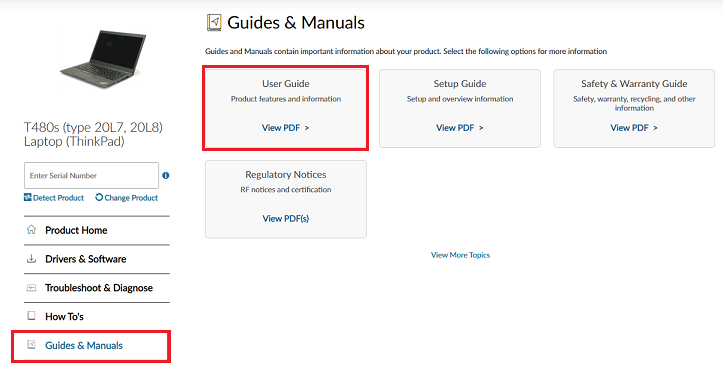
Lenovo is one of the largest computer makers in the world, and its machines are found everywhere from corporate offices to student desks. The ThinkPad line has a long reputation for durability and serviceability, while the IdeaPad, Legion, and Yoga lines cover consumers, gamers, and flexible two-in-one users. Because Lenovo machines are often kept in service for years and are frequently upgraded, the manual is a particularly valuable resource. This guide explains how to find Lenovo documentation, identify your exact machine, and use the guidance to set up, upgrade, and repair it.
Planning Upgrades Over a Machine’s Life
One of the reasons Lenovo machines, and ThinkPads in particular, stay useful for so long is that they are designed to be upgraded, and the hardware maintenance manual is the roadmap for doing so. Rather than replacing a whole computer when it feels slow, many owners extend its life for years with targeted upgrades, guided by the documentation that shows exactly what their model supports.
The manual specifies the type and maximum amount of memory a machine accepts, the storage options it can take, and whether components like the battery or wireless card can be replaced. This information lets you plan upgrades sensibly, spending on the changes that will make the biggest difference rather than guessing. When the time comes, the step-by-step disassembly instructions and diagrams make the physical work approachable for a careful owner, showing which panels to remove and how to handle each component safely. Following the manual protects both the machine and any warranty, and it means a well-chosen upgrade path can keep a Lenovo laptop or desktop capable and fast well beyond the point where an unsupported machine would have been retired.
Why Lenovo Manuals Are Useful
A Lenovo manual covers far more than first-time setup. For laptops and desktops, it explains the ports and controls, the recovery and BIOS options, and, importantly, the hardware maintenance and upgrade procedures. Lenovo publishes detailed hardware maintenance manuals, especially for the ThinkPad line, that show how to open the chassis and replace components safely. For tablets and two-in-ones, the manual explains the touch and pen features and connectivity. Having these documents means you can perform upgrades and repairs with confidence rather than risking damage, and configure a new machine correctly from the start.
ThinkPad, IdeaPad and Beyond
Lenovo documentation spans several lines. The business line centers on ThinkPad laptops and ThinkCentre desktops, known for serviceability. The consumer line includes IdeaPad laptops and IdeaCentre desktops. There are also Legion gaming machines, Yoga convertibles, tablets, and a range of monitors and accessories. Each line has its own manuals, but Lenovo structures them consistently, so learning to navigate one prepares you for the others.
Because an office or home might combine a Lenovo laptop, desktop, and monitor, a comprehensive manual archive that keeps every category together is a practical advantage. Rather than searching separate support sections, you can pull all your documentation from one place. The dedicated collection of Lenovo laptop manuals organizes the business, consumer, and gaming lines so you can go straight to your model.
Finding Your Machine Type
The most reliable way to find the correct Lenovo manual is to identify the machine type and model, then search for that specific combination. Lenovo uses a machine type designation alongside the marketing name, and this is what pinpoints your exact configuration, which matters when you need the hardware maintenance manual for upgrades. The machine type and serial number appear on a label on the bottom of a laptop, the rear or side of a desktop, and are also shown in the BIOS and within the operating system’s information tools.
Record the machine type and model, such as the specific ThinkPad or IdeaPad designation. With these, you can find the user guide, setup guide, and the detailed hardware maintenance manual that Lenovo provides for many machines. This is where Lenovo documentation excels, because the maintenance manuals include clear disassembly steps that make upgrades approachable.
Upgrades and Troubleshooting
One of the main reasons Lenovo owners seek out manuals is to perform upgrades. Adding memory, replacing a storage drive, or swapping a battery is well within reach for many users who follow the hardware maintenance manual’s step-by-step instructions and diagrams. These guides show which screws to remove, how to disconnect cables safely, and the correct order of operations, which prevents the accidental damage that comes from improvising.
For troubleshooting, Lenovo machines use diagnostic indicators and built-in diagnostic tools that report faults through codes or messages. The manual explains what these mean and the recommended steps to resolve them. Many issues, such as memory or connection faults, can be diagnosed at home. When comparing across models or generations, the wider comprehensive manual archive lets you check the documentation for a related machine.
Reading and Downloading
How you access a Lenovo manual depends on your task. Reading online in your browser is ideal for a quick question, because you can search within the document for a term like “memory,” “recovery,” or a specific error and jump straight to it. It works on any device with nothing to install, which helps when you are working on one machine and reading on another.
Downloading the PDF is better for an offline copy, which is often the case during a repair when the machine you are fixing is your main computer. A local file prints cleanly, so you can keep the disassembly steps beside you as you work. Many owners keep a labeled folder of manuals for every Lenovo device they own.
Lenovo machines reward owners who take advantage of their upgradeability and thorough documentation. Record your machine type and model, know whether you need a user guide or a hardware maintenance manual, use the diagnostic and troubleshooting sections before seeking paid help, and keep a saved copy for each device. With those habits, a lost Lenovo manual is never a real obstacle, and every laptop, desktop, and tablet you own becomes easier to configure, upgrade, and repair.